2. INSTALLATION
E. Driver Installation And Setup
Driver Install For Windows XP
- Insert the "Roland Software Package" CD into you CD-ROM.
- Plug in your USB cable Now.
- A Window should appear on your screen after a few moments.
- Now follow along with this video.
Driver Install For All Windows except XP
- Insert the "Roland Software Package" CD into you CD-ROM.
- If CD does not auto start the click on your windows start button click on run and type in the drive letter of your CD-ROM drive (i.e. D:\ ).
- Once the CD has started follow this video to Finish install.
- Plug in your USB cable Now.
Making a shortcut on your desktop of control panel
- Go to the windows start button and click on it.
- Find the Control Panel and open it.
- In the control panel window find the icon for Printers and Faxes.
- If you are using windows XP you may see "Printers and other Hardware" if so click on it and then you will see printers and faxes.
- Now Find the icon Roland MDX-40 and right click on.
- Click on Printing preferences.
- Once the new window appears click on the tab that says "Options" then click on the button that says "Create Shortcut".
- If you need more assistance with this part. Please watch this video.
Software Install
- Insert Modela player 4 CD into your CD-ROM drive.
- If CD does not auto start the click on your windows start button click on run and type in the drive letter of your CD-ROM drive (i.e. D:\ ).
-
After the CD starts Click install under Modela player 4.
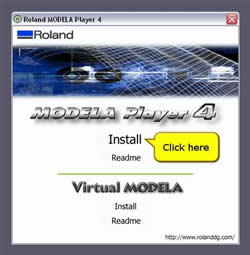
- Now you can follow along with this video.
-
After Modela player 4 is installed. You may install virtual Modela.
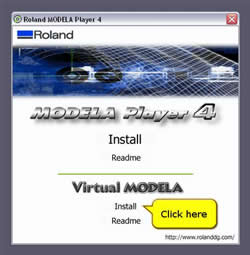
- For help installing virtual Modela you can follow along with this video.
